A tokenized agent or prompt on the Swarms Marketplace is a normal listing with one added property: it has its own tradeable token on Solana, and the creator earns a percentage of every trade in that token, indefinitely. If you have not read the full walkthrough of tokenization, the bonding curve, and creator fees, start with Tokenized Agents: What They Are, How to Launch One, and How Creators Earn Ongoing Revenue. This post assumes you know the basics and goes deep on one feature inside that flow: Vault Mode.
What Vault Mode Actually Is
By default, a tokenized listing's token is purely financial. Anyone can use the underlying agent or prompt for free (or pay the listed price), and separately, anyone can buy or sell its token on the bonding curve. The two are unrelated.
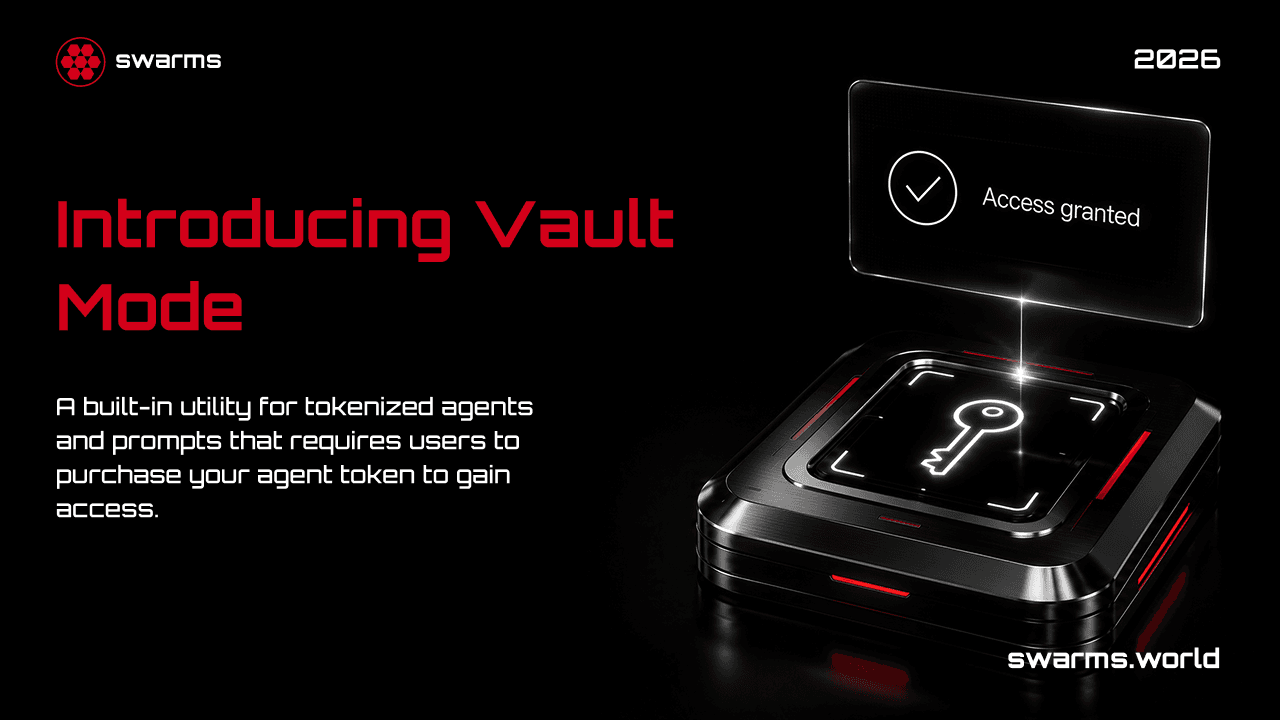
Vault Mode changes that. It is an optional toggle available at launch time, sitting right next to Frenzy Mode in the tokenization section of the launch page, and it turns the token into the access mechanism itself. The in-app description next to the toggle states it plainly:
"Only token holders can use this {entityType}. Users must purchase the token to access it."
Once enabled, the underlying agent or prompt is locked behind a holder check. Per the product's own unlock screen, the requirement is holding at least $1 worth of the token in a connected wallet. Buy the token, hold it, and the content unlocks. Sell out of it, and it locks again the next time the check runs.
How the Gate Works, End to End
Vault Mode is enforced by a client-side component called VaultGate (shared/components/entity/parts/vault-gate.tsx), which wraps the entire content area of an agent or prompt page, not just a section of it. The gate only activates when both conditions are true: the listing has vault_mode enabled and it is tokenized. If either is false, or a token address does not exist yet, the gate does nothing and the page renders normally.
A few important details about how the check behaves:
- The creator always sees their own content. The gate explicitly skips itself for the listing's owner, so publishing a vaulted agent never locks you out of your own work.
- The check runs against your connected wallet. When a non-owner visitor loads a vaulted page, the component calls a server route,
/api/vault-mode/check-holder, passing the visitor's wallet address and the token's address. That route queries the wallet's on-chain token balances and reports back whether the wallet holds the token.
- Results are cached for five minutes. The result is cached client-side (in memory and session storage) for five minutes per wallet-and-token pair, so it is not re-checked on every render. A manual refresh control in the locked view forces a fresh check immediately, which matters right after a purchase, since a stale cached result would otherwise persist for a few minutes.
- No wallet connected means no access. A visitor with no wallet connected is treated as a non-holder. There is no separate "connect your wallet" interstitial; the locked view itself doubles as the connect prompt, since its buy widget requires a connected wallet to function.
What Locked vs. Unlocked Actually Looks Like
Locked content is not hidden outright. The real page content sits underneath a blurred, desaturated, non-interactive overlay, with a "Vault Mode: Holders only" card on top of it. That card shows the listing's rating, the visitor's current token balance (with a refresh button), the token's address with a copy button and a Solscan link, and a built-in buy widget: a SOL amount field with quick-buy shortcuts, a live quote, and a "Buy" button that executes the swap directly from the visitor's connected wallet without leaving the page. There is also a link to open the token on Axiom for anyone who prefers to trade there instead.
Once a holder check succeeds, whether because the visitor already held the token or just bought it through the widget, the interface plays a short "Access granted" confirmation, then smoothly removes the blur to reveal the full agent or prompt in place, with no page reload required.
Vault Mode and Pricing Are Mutually Exclusive
Vault Mode replaces a USD price, it does not stack with one. Enabling it on a listing set to Paid automatically switches pricing back to Free, with a toast explaining why: Vault Mode already gates access through token holdings, so a separate USD price on top of that would be redundant. The reverse is enforced too: while Vault Mode is on, the Paid pricing option is disabled outright, and publishing a listing that is somehow both Paid and vaulted is blocked at submit time.
Frenzy Mode is a different story. It is an independent toggle that doubles the creator's fee share on trading volume, and nothing in the launch flow prevents it from being combined with Vault Mode. A creator can launch a listing that is both vaulted (usage requires holding the token) and running Frenzy Mode (trading volume pays the creator double), at the same time.
How to Launch a Vaulted Agent or Prompt
- Go to the launch page and fill out your agent or prompt as usual: name, description, and content.
- In the Pricing section, toggle Tokenization on. This is only available for agents and prompts, not tools.
- Set your Ticker Name and choose a Quote Mint (SOL or USDC).
- In the same tokenization panel, flip the Vault Mode switch on. If your listing was set to Paid, pricing will automatically switch to Free.
- Optionally, also enable Frenzy Mode if you want the doubled fee share alongside the holder gate.
- Connect your Solana wallet if you have not already; tokenization requires it before you can publish.
- Publish. Pay the one-time token launch fee when prompted, then buy your own token promptly afterward, since creating it does not automatically grant you any of it.
Why Creators Choose Vault Mode
A normal paid listing and a vaulted listing both charge for access, but the mechanism behind that charge is fundamentally different, and that difference is the whole reason to consider Vault Mode:
- It converts usage demand into token buy pressure. In a normal paid listing, a buyer pays once and the transaction ends. In a vaulted listing, every person who wants to use the agent or prompt has to go acquire the token first, and that demand shows up directly on the bonding curve rather than in a one-time invoice.
- It aligns the token's value with real utility. A token attached to a purely speculative listing only has narrative value. A token that is required to unlock something people actually want to use has a demand floor tied to the underlying product, not just to trading sentiment.
- It gives holders a reason to keep holding. With a plain tokenized listing, nothing stops a buyer from flipping their tokens the moment they get a small profit. With Vault Mode on, selling out of the token means losing access to the tool, which gives active users of the agent or prompt a standing reason to stay a holder rather than trade in and out.
How Buyers Spot Vaulted Listings
Vault Mode is visible before anyone tries to open a locked page. On both the marketplace grid and the individual listing page, a small "VAULTED" badge with a lock icon appears next to the title whenever Vault Mode is active. The marketplace registry page also has a dedicated "Vault" option in its Pricing filter, right alongside Free, Paid, Tokenized, and Frenzy, so buyers can filter the entire registry down to vaulted listings specifically, or exclude them if that is not what they are looking for.
FAQ
Do I need to keep holding the token after I have used the agent once?
Yes. The holder check runs again on later visits (subject to the five-minute cache), so continued access depends on continuing to hold at least the required amount.
What happens if I do not have a wallet connected at all?
You are treated as a non-holder and see the locked view, which includes a buy widget that prompts you to connect a wallet the moment you try to use it.
Can I combine Vault Mode with Frenzy Mode?
Yes. They are independent toggles. Vault Mode gates access through token holding, and Frenzy Mode changes the creator's fee share on trading volume. Nothing prevents running both at once.
Does Vault Mode work for tools?
No. Tokenization is only available for agents and prompts, and Vault Mode has no meaning without tokenization, so it inherits the same restriction.
Get Started
Vault Mode is one option inside a larger tokenization flow, worth using specifically when you want the token to gate real usage rather than just trade on speculation.
- Launch a vaulted agent or prompt: head to the launch page, toggle Tokenization on, and flip Vault Mode alongside it.
- See vaulted listings live today: filter by Vault on the marketplace registry.
- Read the full tokenization guide: for the bonding curve, fee split, and Frenzy Mode in detail, see Tokenized Agents: What They Are, How to Launch One, and How Creators Earn Ongoing Revenue.