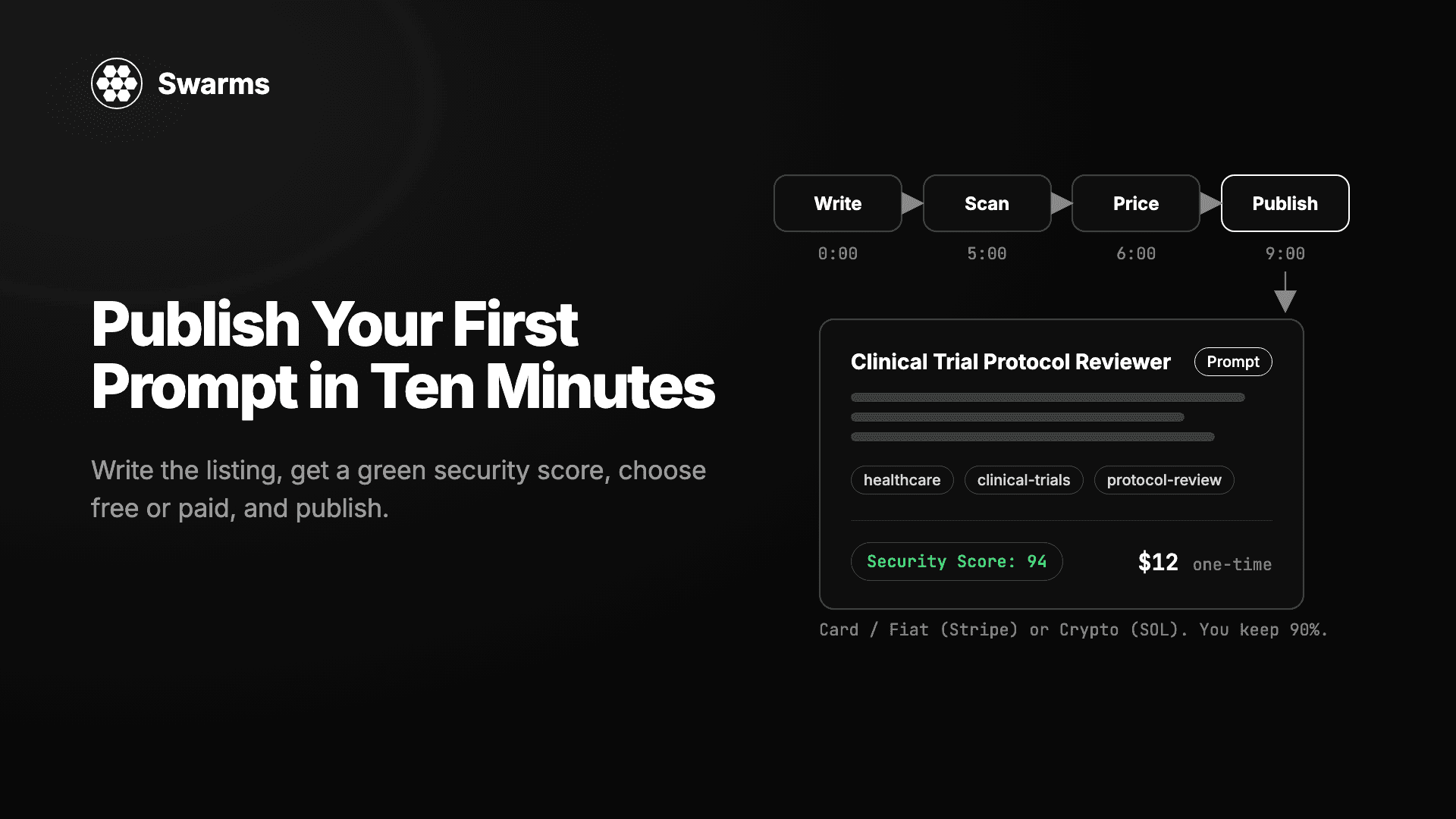
A prompt is the simplest thing you can publish on the Swarms Marketplace. There is no code to attach, no dependencies to declare, and no environment variables to document. You paste the text, describe it, decide whether it is free or paid, and click publish. Publishing costs nothing, and if you charge for it, you keep 90% of every sale.
Most people who browse the marketplace have a system prompt somewhere that works unusually well for them. This post is a timed walkthrough for publishing it, with a minute budget for each step, followed by notes on what to publish first and how to price it.
What a prompt listing is
A prompt listing is a product page on swarms.world: a name, a description, an image, categories and tags, and the prompt text in a Main Prompt tab. The marketplace adds a Security tab with a 0 to 100 Security Score and a Chat button that runs the prompt as an agent's system prompt, so a visitor can try it before buying.
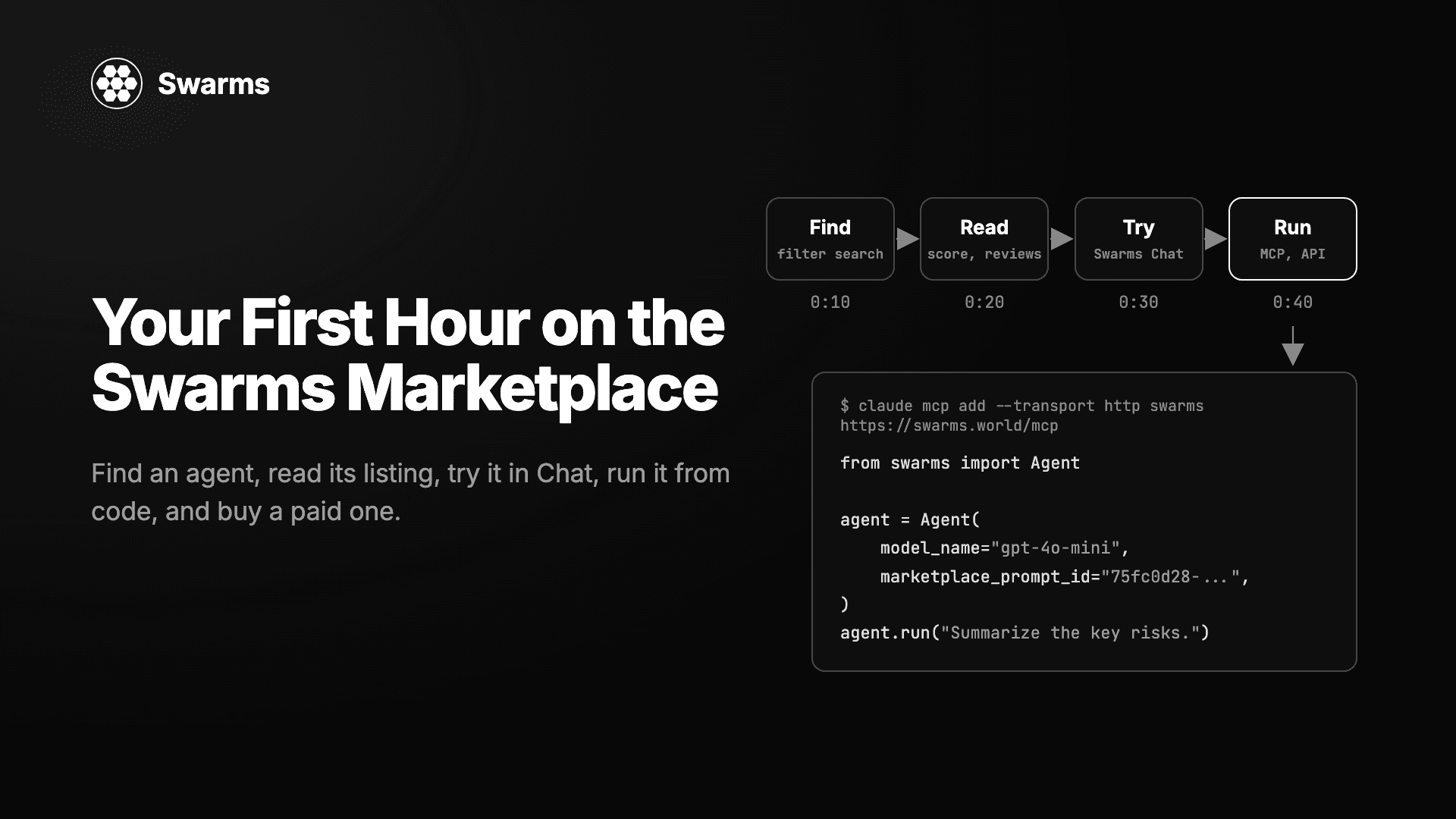
If the prompt is free, anyone can read the full text, and it is also served as plain markdown at https://swarms.world/prompt/<id>.md. If it is paid, visitors see the listing, the price, and a Premium badge, and the full text becomes available after a one-time payment, for life. Either way, a buyer can view it in Chat, Preview, or Markdown mode, export it to ChatGPT or Claude with one click, or load it into a Swarms agent by passing its id as marketplace_prompt_id.
Before the clock starts
If you want to accept card payments, do one thing before you open the form. Go to the Seller tab in your account settings, pick your country, and click Set up seller account. That sends you into Stripe's hosted onboarding for payout details, business or personal information, and identity verification. It takes a few minutes, verification is usually instant, and your progress is saved if you step away. Crypto-only sellers can skip Stripe, and a free prompt needs no setup at all.
The ten-minute walkthrough
1. Minute 0 to 1: open the launch page and choose Prompt
Sign in at swarms.world, go to swarms.world/launch, and choose Prompt. The form labels which fields are required and which are optional. For a prompt there is no implementation section: the content is the prompt itself, plus the usual name, description, image, categories, and tags.
2. Minute 1 to 3: add the prompt body
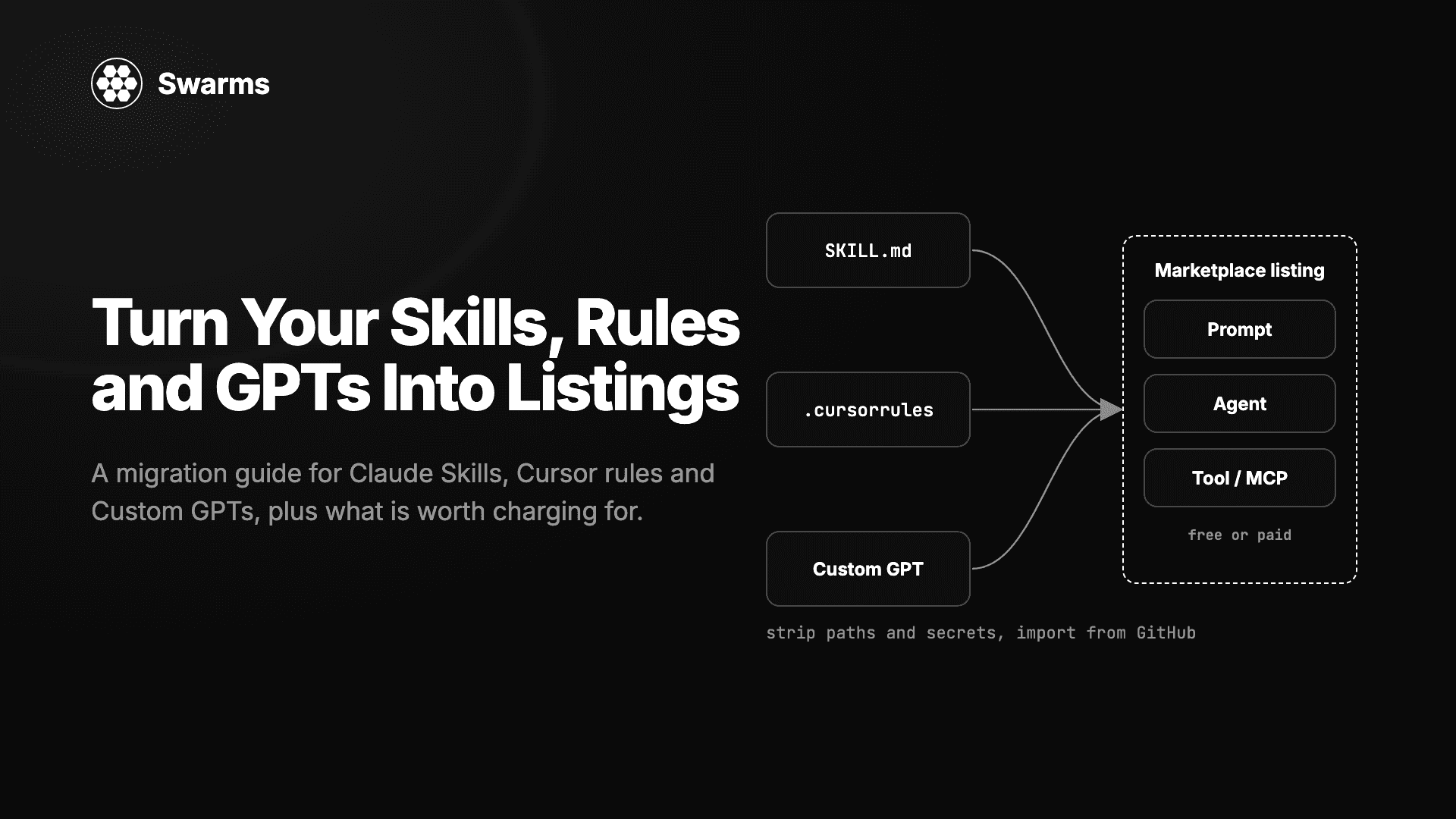
Paste your prompt into the content field, or drag a .md, .mdx, or .txt file onto the form, including an Anthropic-format SKILL.md. The importer fills in the prompt body and reads the name, description, and tags from the file's frontmatter, and it only fills fields you have not typed into.
Two habits here save you trouble at step 4. Keep every instruction visible: no HTML comments, no encoded blocks. And if the prompt really does need an agent to use a shell or the network, say why in the prompt text itself.
3. Minute 3 to 5: title, description, categories, tags, image
Registry search matches a listing's name, description, and tags at once, so these fields decide whether anyone finds you.
- Title. Say what the prompt does, in the words a buyer would type. "Clinical trial protocol reviewer" finds buyers; "Ultimate prompt v3" does not.
- Description. State what the prompt produces, who it is for, and how to use it. Include a demo output: a short example of what the prompt returns for a realistic input. The form has no dedicated field for this, so put it in the description or add it as a use case in the Use Cases dropdown.
- Categories. The catalog spans twenty categories, including Finance, Research, Healthcare, Developer, and Security. Pick the ones a buyer would filter by.
- Tags. Click the tag generator and it proposes 5 to 16 kebab-case tags from your name and description, mixing industry, agent-type, and capability tags and refusing filler like
ai and useful. Keep the ones that are true; the registry's natural-language search rebuilds its vocabulary every hour from the tags on live listings.
- Image. Upload one, or click generate and choose between two 16:9 banner candidates.
A live preview of the listing sits next to the pricing section, so you see what buyers will see before you commit.
4. Minute 5 to 6: check the security score
Every prompt page carries a Security tab, powered by SkillScanner. The marketplace scans the prompt text with 49 detection rules plus a Swarms agent review and shows the result as a Security Score, where higher is safer: the score is 100 minus SkillScanner's risk score.
| Security Score | Severity | Recommendation | Badge |
|---|
| 80 to 100 | LOW | SAFE | Green |
| 50 to 79 | MEDIUM | CAUTION | Red |
| 20 to 49 | HIGH | DO_NOT_INSTALL | Red |
| 0 to 19 | CRITICAL | DO_NOT_INSTALL | Red |
A green score of 80 or above is what you want. The detail that matters for a seller: the marketplace keeps the first complete scan of a prompt and shows it to every later visitor, and editing the prompt afterwards does not trigger a new scan. So scan before you publish. SkillScanner is open source, static mode needs no API key, and a scan takes seconds:
from pathlib import Path
from skills_scanner import SkillScanner

scanner = SkillScanner(use_agent=False)
report = scanner.scan_text(Path("my-prompt.md").read_text(), name="my-prompt")

print("Security Score:", round(100 - report.risk_assessment.score), report.verdict)
for issue in report.issues:
    print(issue.severity.value, issue.id, f"line {issue.location.start_line}", issue.remediation)
If the score comes back low, each finding gives you the line, the matched text, and a remediation. In honest prompts, almost every finding comes from a few habits: phrases like "ignore previous instructions" or "do not tell the user"; shortened links, raw IP addresses, paste sites, or plain http:// links; API keys in the text; instructions hidden in HTML comments, invisible Unicode, or base64; and shell or network behavior with no explanation. A single confident high finding is enough to pull a score below 80 on its own, so one sentence is often the whole difference. Fix, rescan, and move on when it is green.
5. Minute 6 to 8: choose free or paid
Free is the default and needs nothing else. For a paid prompt, mark the listing as Paid, set a one-time price in USD, and answer the form's question, How do you want to get paid?, with one of two rails:
| Crypto (SOL) | Card / Fiat (Stripe) |
|---|
| Buyer pays with | A Solana wallet | Cards, Apple Pay, Google Pay, Alipay, Klarna, and whatever else Stripe offers in their region |
| Where your share lands | Your registered Solana wallet | Your Stripe Express balance, then your bank account |
| When | Instantly, in the purchase transaction | On Stripe's standard payout schedule |
| Platform fee | 10% | 10% |
| You keep | 90% | 90% |
The fee is flat on both rails, with no listing fees or minimums: on a $20 prompt you receive $18.00. The rail is chosen per listing, so you can sell one prompt by card and another for SOL from the same account. If you pick Card / Fiat and your Stripe account is not active yet, the form blocks publishing and points you back to the Seller tab. If you pick crypto with no payout wallet set, the Seller Portal flags the listing with a No payout wallet warning until you add one.
You will also see a tokenization option. It is a separate decision, covered in the complete guide to tokenizing your agent, and a plain free or paid prompt is the right first launch.
6. Minute 8 to 9: publish
Click publish. Before the listing goes live, a publishing judge reads the name, description, and full prompt and scores it from 0 to 5 with a short written rationale. A free listing needs to clear 2.5 and a paid listing 3.5, and the rationale is written into the marketplace as a review. If the description is honest and the prompt does what it says, this is a formality.
Your prompt now has a page, appears in the registry, and shows on your public profile at swarms.world/users/<your-username>.
7. Minute 9 to 10: open the listing and run the first scan
Open the new page and click the Security tab. If no report exists yet, this runs the first scan (you need to be signed in, and it can take up to a minute). Because you scanned the text in step 4, the result should match, and the green badge appears in the banner on the next page load. Click Chat and run your own prompt once, the way a buyer will. Then open the Seller Portal: if a Finish setting up banner is showing, it lists exactly what would stop a buyer's payment from reaching you, with a link to fix each item. When the banner is gone, you are done.
What happens after you publish
The Seller Portal becomes your home page. It shows earnings and sales over the last 30 days net of fees, your average rating, a listings table sorted by earnings, a Payouts section that says where card, crypto, and token income goes, and your latest reviews and comments from every listing in one feed. The Sales page lists every transaction with gross, fee, and net, and exports to CSV. Answer buyer questions from the reviews feed before they turn into a missed sale.
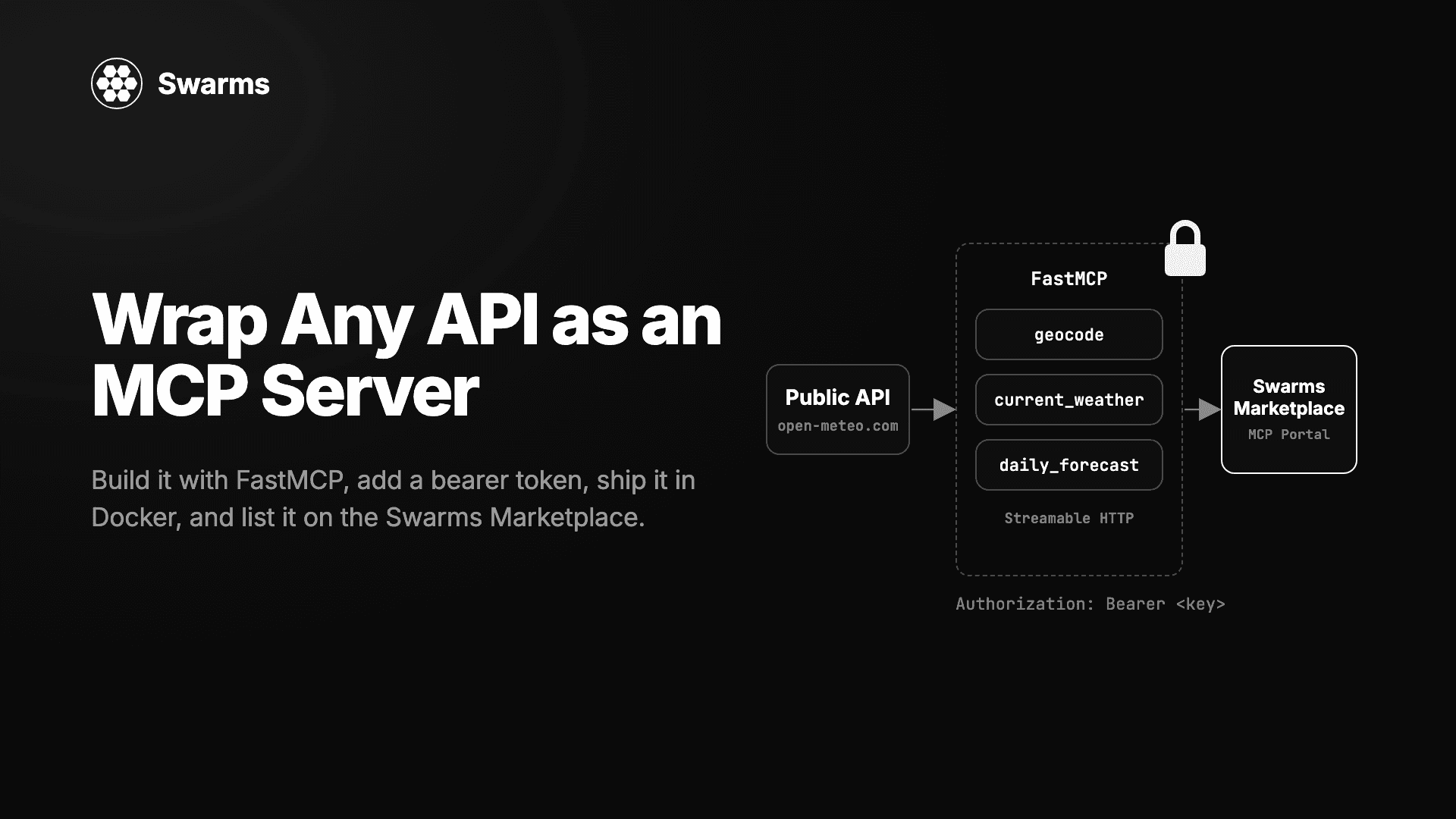
Agents can find it. swarms.world is also a Model Context Protocol server at https://swarms.world/mcp. Any connected MCP client can search prompts by name, tag, category, or price with the get_get-prompts tool. A free prompt comes back with its full body; a paid prompt returns its metadata plus an access_info object until the account behind the key has bought it. The tags you wrote in step 3 are what these agents match against.
Your profile does work for you. Creator profiles are server rendered, so your listing is findable from outside the marketplace, and you can add a bio of up to 500 characters in account settings. If you subscribe to Pro ($19.99 a month) or Premium, a blue Verified badge appears next to your username and your products are recommended to other users. The badge means the account has an active paid plan; it is separate from the identity verification Stripe runs for payouts. Details are at swarms.world/verified.
What to publish first
Prompts suit personas, task instructions, and structured output templates. The best first listing is the prompt you already reuse the most, because you know what it produces and can paste a real output as the demo. Narrow beats broad: a prompt that reliably does one specific job is easier to describe, easier to find, and easier to review well.
There is no gate before you can charge; any account can publish a paid listing on day one. Even so, a free first prompt is a reasonable move: it is readable by everyone and by every agent on the MCP, and the ratings it collects sit on your profile when you publish something paid.
Pricing judgment
Prices are one-time, and the buyer gets lifetime access. Focused prompts on the marketplace have typically been priced from about $1 to $50. The useful question is how much time or expertise a buyer would need to build the equivalent, and then to price under that. Browse the registry for similar prompts before you decide.
A few concrete points:
- The fee is 10% regardless of price or rail, so a $10 prompt pays you $9.00.
- Card payments reach buyers in more than 100 countries who hold no crypto, so for a prompt aimed at businesses, choose the card rail.
- On a paid prompt the full Security report is only visible to you and your buyers, but the badge is public, which is one more reason to get the score green before publishing.
- Pro costs roughly one sale a month, and the badge and recommendations tend to pay for themselves if you plan to sell.
You can edit the listing later from its product page, and the Seller Portal's earnings chart will show within days whether a change moved anything.
Next: write a listing people find
Ten minutes gets a good prompt onto the marketplace. The title, description, and tags decide whether anyone sees it afterwards, and they deserve more than the two minutes they got here. The companion post, How to Write a Listing People Actually Find, goes through each field in detail. For the payment side, see how to sell agents and prompts with Stripe and crypto; for the scanner, every prompt now has a Security Score. Then open swarms.world/launch and start the timer.