The Swarms Marketplace lists more than 6,000 agents, prompts, tools, and MCP servers. A listing that is published but never found earns nothing, and the difference between found and buried usually comes down to a few fields on the launch page: the title, the tags, the first sentence of the description, and whether the page shows what the product actually does.
This guide covers each of those fields for every product type, grounded in how discovery works on the marketplace today. If you are publishing a prompt for the first time, pair it with Publish Your First Prompt in Ten Minutes, which covers the form itself.
Start with how people search
Every decision below follows from the ways a listing can be found.
- The registry search bar at swarms.world/platform/registry matches your name, description, and tags at once. Its placeholder says so: "Search by name, description, or tags...".
- The navigation search on every page ranks exact name matches first, then prefix matches, then everything else.
- The filter bar narrows by item type, pricing, a free-text tag (case-insensitive substring match), and industry. The industry list is the same category list you pick from when you publish.
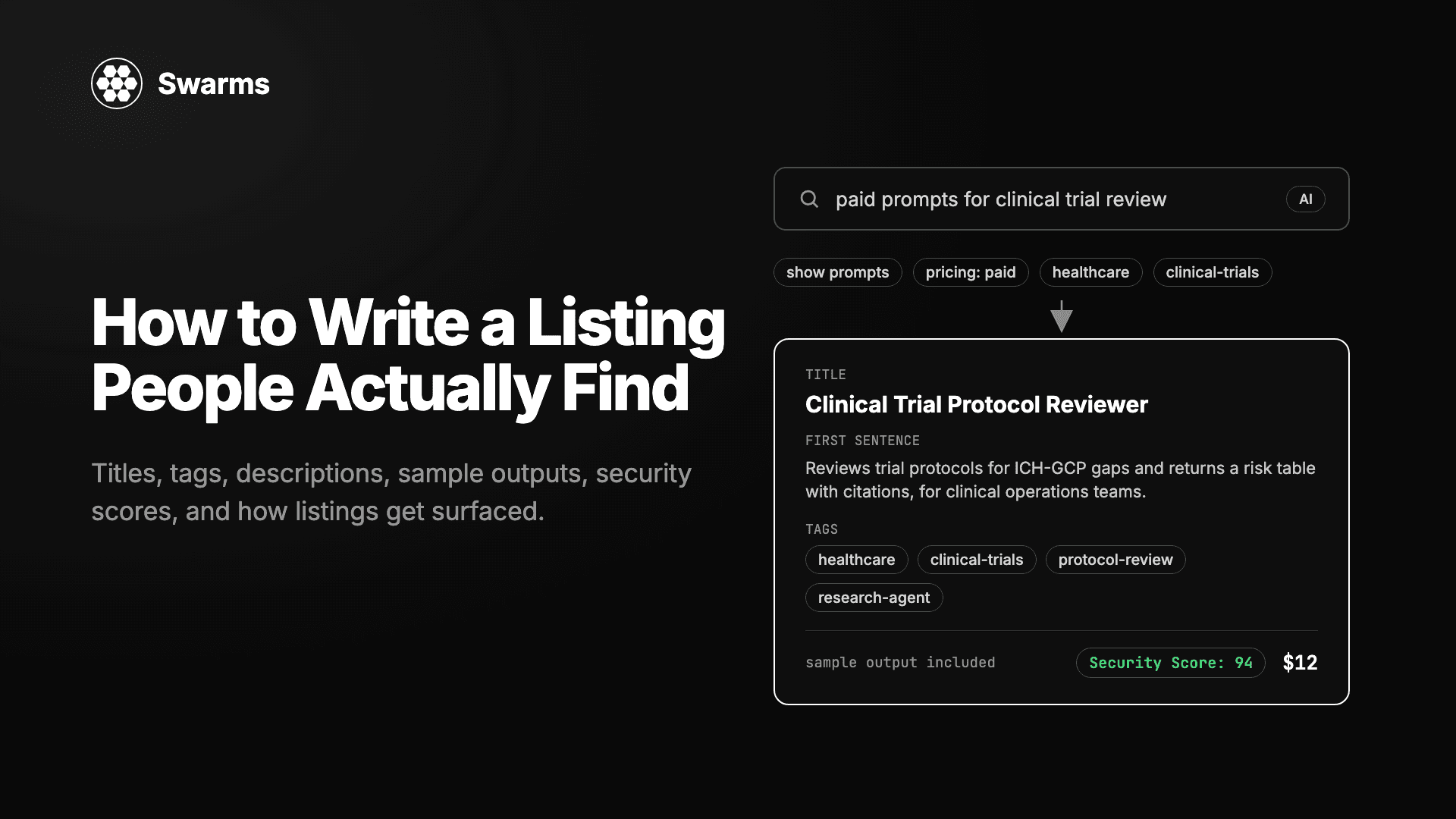
- Autonomous Filter Search, the AI button beside the registry search bar, turns a plain English request into those filters. Every hour it refreshes its vocabulary from the 100 most common tags on real listings, so it only maps requests onto tags that exist.
- The marketplace MCP at
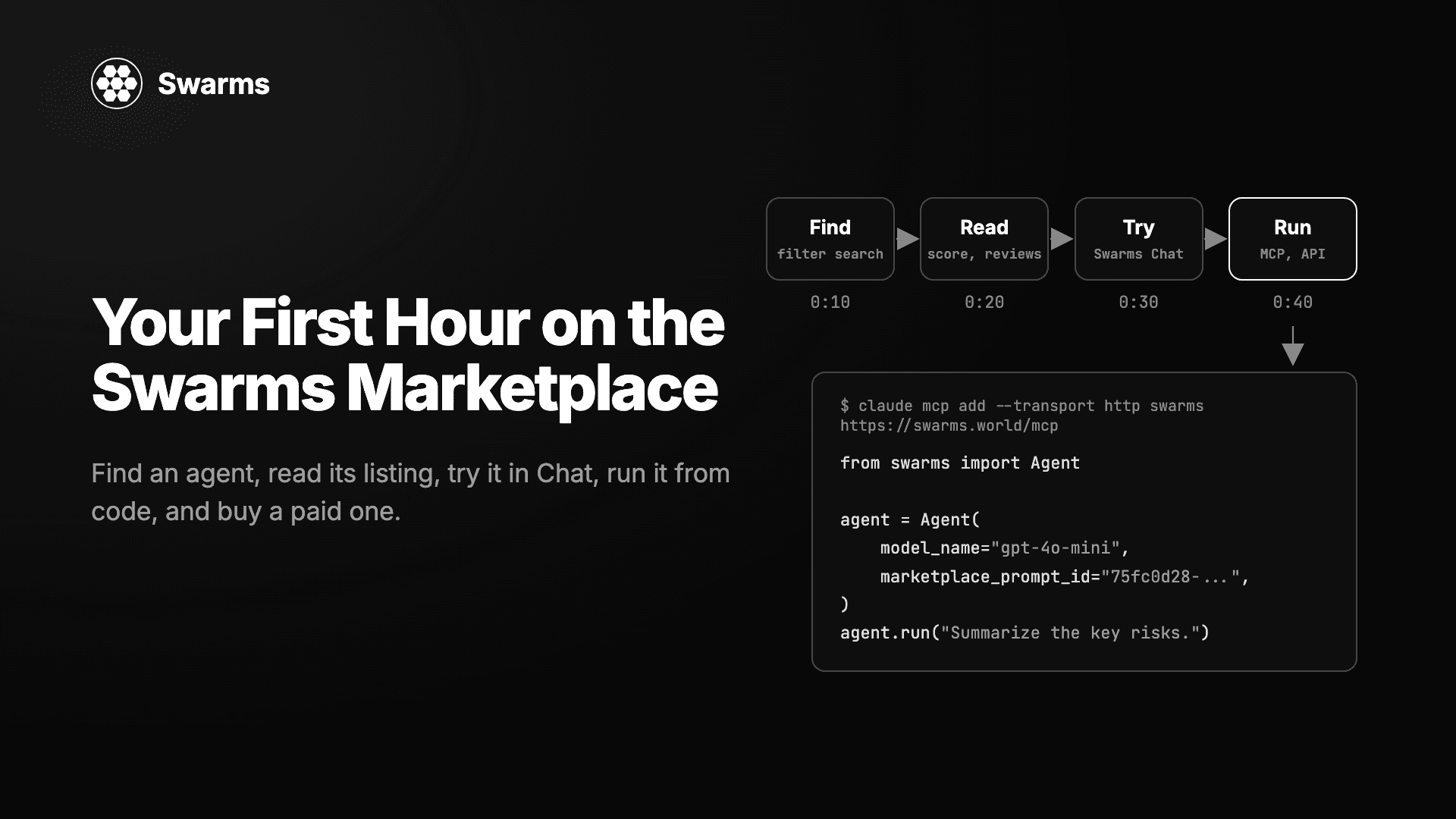
swarms.world/mcp lets other agents search by name, tag, category, language, required package, use case, or price.
Write your name, tags, and description for a reader who is typing what they need, in their own words.
Titles
The name is the heaviest field in search and the only text a buyer is guaranteed to see on a card.
Lead with the job, then the domain. Put the noun a buyer would type first: "Clinical Trial Protocol Reviewer", "Shopify Order Reconciliation Agent". Exact and prefix matches rank first in the navigation search, so the first word matters most.
Keep it short enough for a card. Grid cards and table rows truncate long text. Three to seven words is a good range.
Avoid generic names. "AI Assistant" and "Research Agent" compete with hundreds of identical listings and tell a buyer nothing.
Do not start the name with "x402". Agents whose names begin with "x402" are pushed to the back of every registry listing by default, whatever the filters or sort order, and buyers can exclude them entirely. Version numbers, emoji, and all-caps spend characters a card does not have and match nothing anyone searches for.
| Weak title | Why it fails | Stronger title |
|---|
| AI Research Agent | Hundreds of identical names, no domain | Biotech Patent Prior-Art Researcher |
| My Awesome Prompt v2 | Says nothing about the job, version noise | Cold Email Sequence Writer for B2B SaaS |
| x402 Super Trading Bot 🚀 | x402 prefix sorts it to the back, emoji wastes space | Perpetuals Funding Rate Arbitrage Agent |
| Firecrawl Thing | Vague, not searchable by capability | Firecrawl MCP: Web Search, Crawl, and Scrape |
Tags and categories
Tags are how the tag filter, the registry search, and the Autonomous Filter Search agent find you. Categories are how the industry filter and the MCP servers page find you. Set both.
Write tags the way buyers describe needs. A buyer types "customer support", "lead-gen", or "pdf-extraction", so your tags should be those phrases in kebab-case, roughly five to sixteen of them. The launch form's tag generator proposes a set from your name and description, refuses filler like ai, tool, helper, and useful, and mixes three kinds: industry (healthcare, fintech), type (research-agent, mcp-server), and capability (web-scraping, sql-generation). Start there, then add the terms you know your buyers use.
Match the catalog's vocabulary. A common tag like trading connects you to every trading search; a one-off like my-quant-system connects you to nothing. In the registry's table view every tag is clickable, so reuse the tags your strongest competitors carry, then add the ones that make you specific.
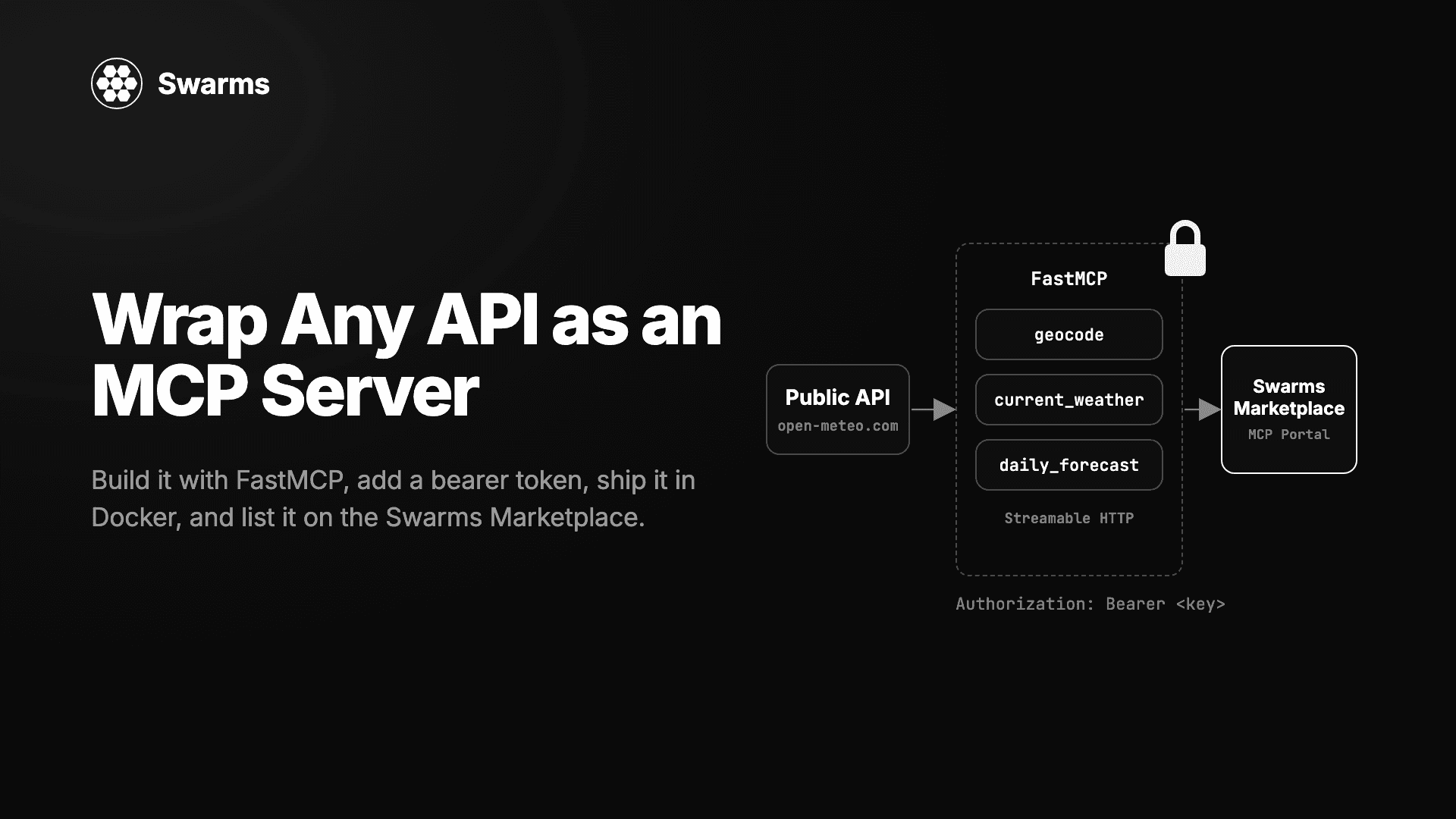
Pick the categories a buyer would filter by. The catalog spans about twenty, including Finance, Research, Developer, Security, Healthcare, Marketing, Sales, Customer Support, and MCP. If your product fits two, pick both. An agent published with an MCP server URL gets the MCP category automatically and appears on swarms.world/mcp-servers; a code-based MCP server published as a tool or prompt needs the MCP category selected by hand.
Descriptions
The description is the search text, the card text, and the sales page at once. Structure it in that order.
First sentence: the search snippet. Cards and table rows show a truncated description, and the registry search matches the full text. Make the first sentence a complete statement of what the product does and for whom, in the words a buyer would search: "Reviews vendor contracts for GDPR and SOC 2 clauses and returns a risk table with citations, for compliance teams at B2B software companies."
Second paragraph: inputs and outputs. For an agent, the input it expects (a URL, a CSV, a question) and the output format (a markdown report, JSON, a table). For a prompt, what the user pastes in and what the model returns. For a tool, the function in plain terms. For an MCP server, the marketplace reads your tools from the server and lists them for you (see Expanded MCP Support), so spend the words on what those tools accomplish together.
Third paragraph: requirements. The model it was built and tested on, any API keys or environment variables, package dependencies, and anything the agent touches (shell, network, a wallet). Buyers who run agents with their own keys look for this before they pay. The publishing judge that reviews every submission reads the full body for this kind of substance: a free listing needs a score of 2.5 out of 5 to publish, a paid one 3.5.
Then the use cases. The launch form's Use Cases section takes a title and a short description for each. Fill in two or three real ones; the marketplace MCP lets agents search listings by use case.
If you inspected an MCP server and the marketplace filled in the name and description from the server's metadata, rewrite that text in your own words. Keep the prose plain: the Summary tab on every listing condenses the page into two to four sentences, and a description that says concretely what the product does summarizes well.
Show a real output
Before paying, a buyer sees your image, description, ratings, upvotes, and purchase count. The body of a paid prompt or agent stays hidden until the purchase completes, so the strongest thing on the open part of the page is a sample of what the product produces.
- Prompt: a short exchange, the user's input and the model's response, trimmed to the part that shows quality.
- Agent: an abridged run, the task you gave it and the first screen of output. If it returns structured data, show the real JSON or table with sensitive values elided.
- Tool: one call and its return value.
- MCP server: the connect section already lists your tools with parameters and read-only or destructive badges. Add one paragraph describing a task an agent completes with them.
Put the sample in a fenced code block, label it as an example, and mark anything abridged.
Set an image. Listings without one get a placeholder; listings with one get a 16:9 hero on the card and the page, and the launch form's image generator makes two banner options from your name and description.
The Verified badge and the Security Score
Two trust signals on the marketplace are within your control.
Verified. Pro ($19.99 a month) and Premium members get a blue Verified label next to their @username on their profile at swarms.world/users/<your-username>. That is the page buyers land on when they click your name on a listing, where they decide whether to trust you with their money or their API keys. The badge means the account has an active paid plan; it is not an identity check and does not rate your products. See Get Verified on the Swarms Marketplace.
Security Score. Every prompt page has a Security tab and, once scanned, a Security Score: N tag in the banner next to tags like FRENZY and VAULTED. The score runs 0 to 100, higher is safer, with a green shield at 80 and above and a red shield below. It comes from SkillScanner, 49 deterministic rules plus an agent review. Details are in Every Prompt Now Has a Security Score.
Two facts change how you publish. First, the first complete scan is the one buyers see: editing the prompt afterward does not trigger a rescan, so scan before you publish. Second, most findings in honest prompts come from a few habits: "ignore previous instructions" or "do not tell the user", shortened or plain http:// links, API keys in the text, instructions hidden in HTML comments or base64, and shell or network access with no stated reason. Say what the prompt does openly, write links in full over HTTPS, keep secrets out, and explain any sensitive behavior in the prompt itself.
SkillScanner is open source and runs locally with scanner.scan_text() on your prompt file, so a green score is something you can earn before anyone sees the listing.
How listings get surfaced
The marketplace does not publish a ranking formula, so work from the signals that are visible.
- Newest First is the registry's default sort. Every listing gets time at the top of the unfiltered registry when it publishes. The Explorer's 24-hour launches card shows how many listings you compete with that day.
- Most Popular requires two or more upvotes. It filters out anything below that before ranking; Most Upvoted has no floor. Two early upvotes from real users move a listing from one list into the other.
- Ratings and reviews are public. The publishing judge writes its assessment into your listing as a review, buyer ratings join it, and your profile shows an average rating.
- Featured rows are curated. The MCP servers page has a hand-picked featured row and the home page a featured carousel. A complete listing with a real sample output is what gets picked.
- Recommendations go to paid plans. Pro and Premium members have their products recommended to other users across the marketplace.
- Tokenized products have the Screener, which lists launches newest first and ranks a trending strip by market cap.
Filters are deterministic: a listing with the right tags, categories, and pricing flag appears in every filter combination that describes it.
Pricing presentation
Buyers filter by price and cards display it, so pricing is part of the copy.
- Free or Paid is a filter. The registry shows or excludes Free, Paid, Tokenized, Vault, and Frenzy listings. Whichever you pick opts you into one set of searches and out of another.
- Paid listings show their USD price on the card and carry a paid tag, so buyers see the price before they click. State what it buys in the first sentence of the description, and say that it is one-time: buyers from other platforms assume a subscription unless told otherwise.
- Pick the payment rail per listing. A paid listing pays out in Crypto (SOL) or by Card / Fiat (Stripe); the launch page blocks a card-priced listing until Stripe reports your account active. Buyers pay once for lifetime access. Tokenized launches always settle in crypto. See How to Sell Your Agents and Prompts.
- Free is a strategy. Free prompts are readable in full by anyone, including agents reading the catalog over MCP, and a strong free listing builds the ratings and upvotes that your profile carries to your paid listings.
Keep the listing fresh
The Seller Portal is where you maintain what you publish.
Read the reviews and comments feed. It collects every review and comment on all your listings in one place. A buyer question in a comment is a sale waiting on an answer, and you are emailed when someone comments or upvotes.
Edit from the product page. Click any listing in the Seller Portal table to open and edit it. Update the description when you change the model, add a dependency, or learn which phrasing buyers search for. Editing a prompt does not rescan it, so scan major revisions yourself. MCP listings refresh on their own: the marketplace re-inspects your server when the listing is viewed and the last check is over a day old.
Watch the 90-day earnings chart after every change. A new title, image, or tag set shows up in the bars within days.
Pre-publish checklist
- Title leads with the job, names the domain, fits on a card, does not start with "x402".
- Tags: five to sixteen kebab-case terms mixing industry, type, and capability, matching tags that already exist, no filler.
- Categories: every industry a buyer would filter by, plus MCP for a code-based MCP server.
- First sentence states what it does and for whom, in search terms.
- Inputs, outputs, requirements listed: model, keys, dependencies, what it touches.
- Use cases: two or three real ones.
- Sample output in a code block, labeled, abridgements marked.
- Image set, 16:9, no text in the artwork.
- Security Score checked with SkillScanner (prompts), findings fixed, 80 or above.
- Pricing: Free or Paid chosen deliberately, rail selected, Stripe active if card, one-time price explained.
- Profile: username and bio filled in, Verified on if you sell.
- Live preview on the launch form read as a buyer would.
Publish, open the registry, and click Refresh to confirm the listing is live. Then keep the Seller Portal open for the first comment.